
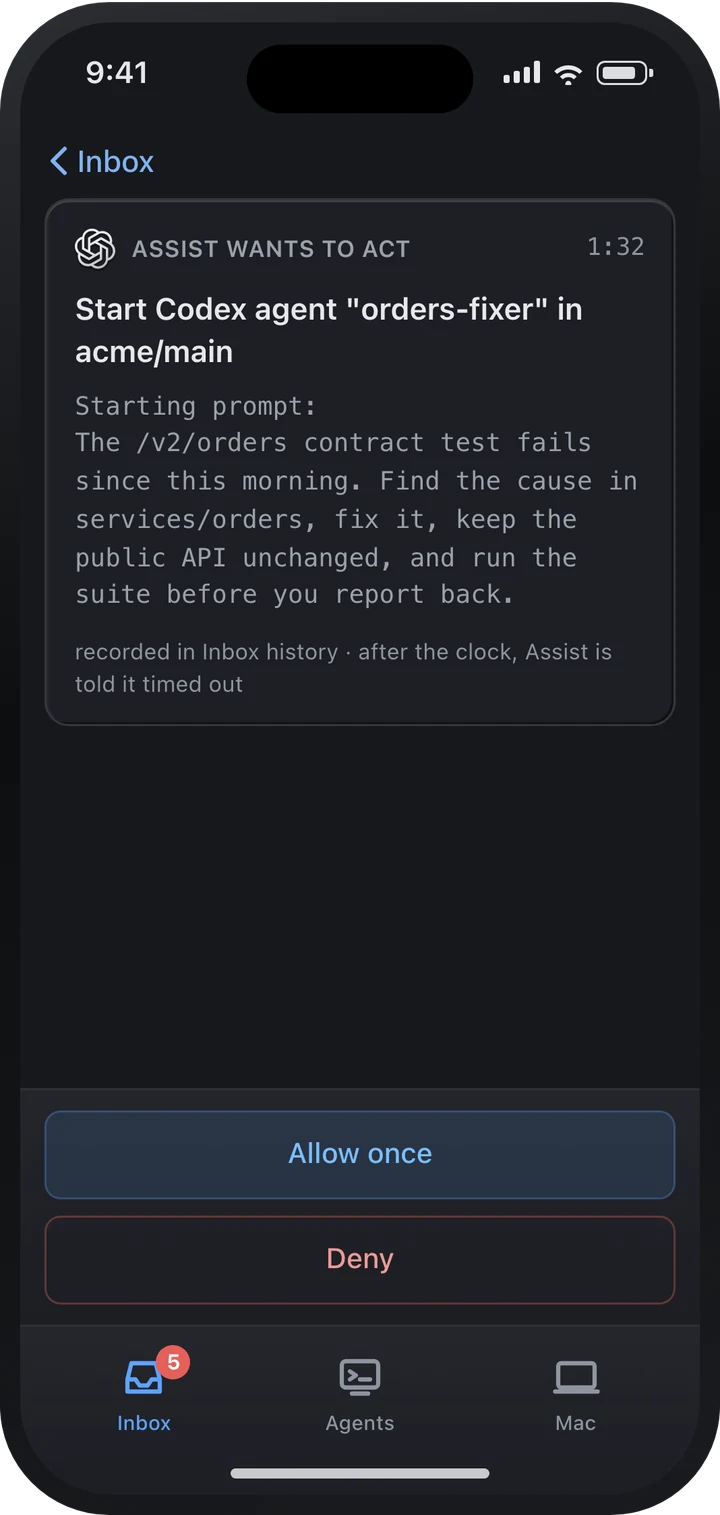
Allow once, from anywhere
When Assist wants to start an agent or act for you, the card it shows on your Mac comes to your phone: the whole request, its countdown, and Allow once or Deny.
Now on the App Store · Free
Everything your agents need from you, on your iPhone: answer Assist, approve a Slack reply, unblock an agent waiting on a prompt, or look at its terminal. Your Mac keeps doing the work.
The iPhone app pairs with AI Bridge on your Mac, so get both, then scan the code in Settings › Phone. How it pairs. iOS 17 or later.
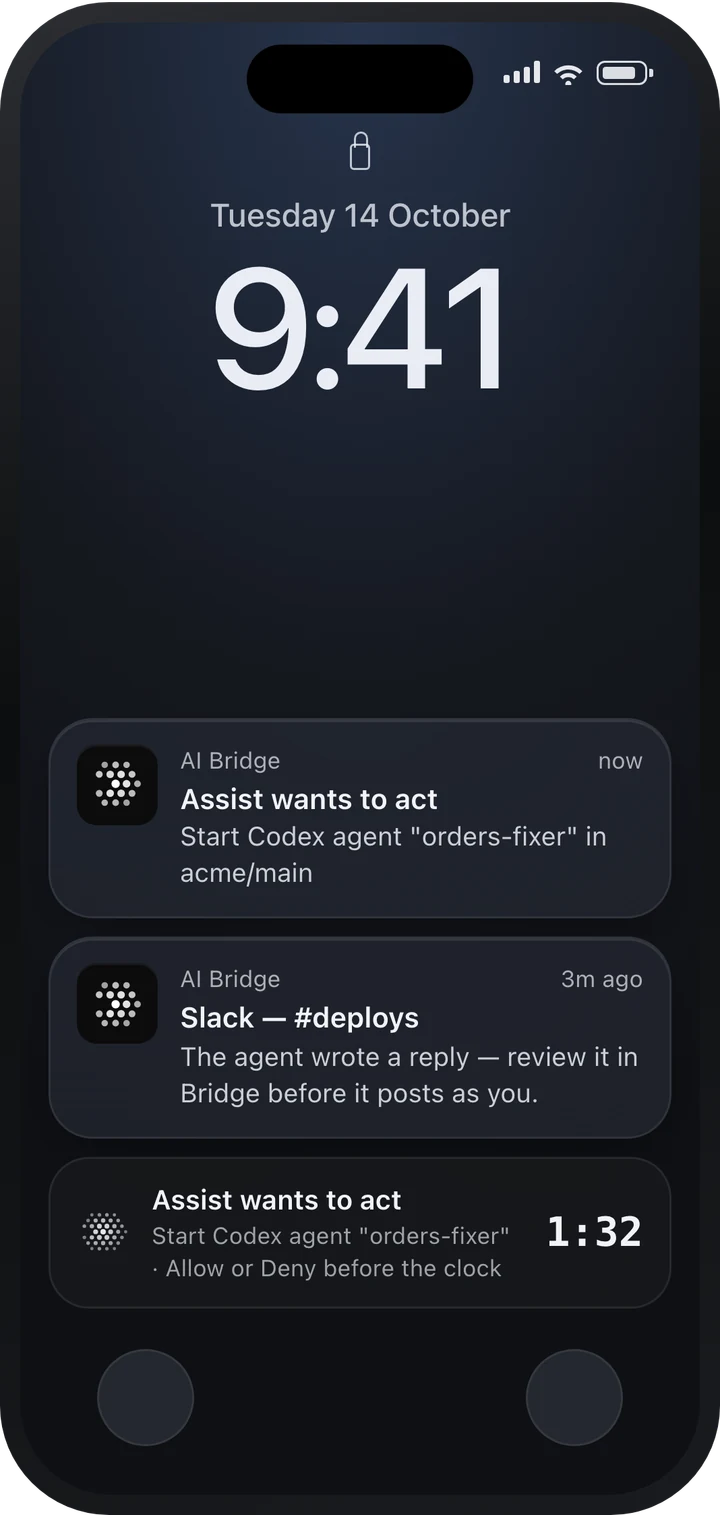
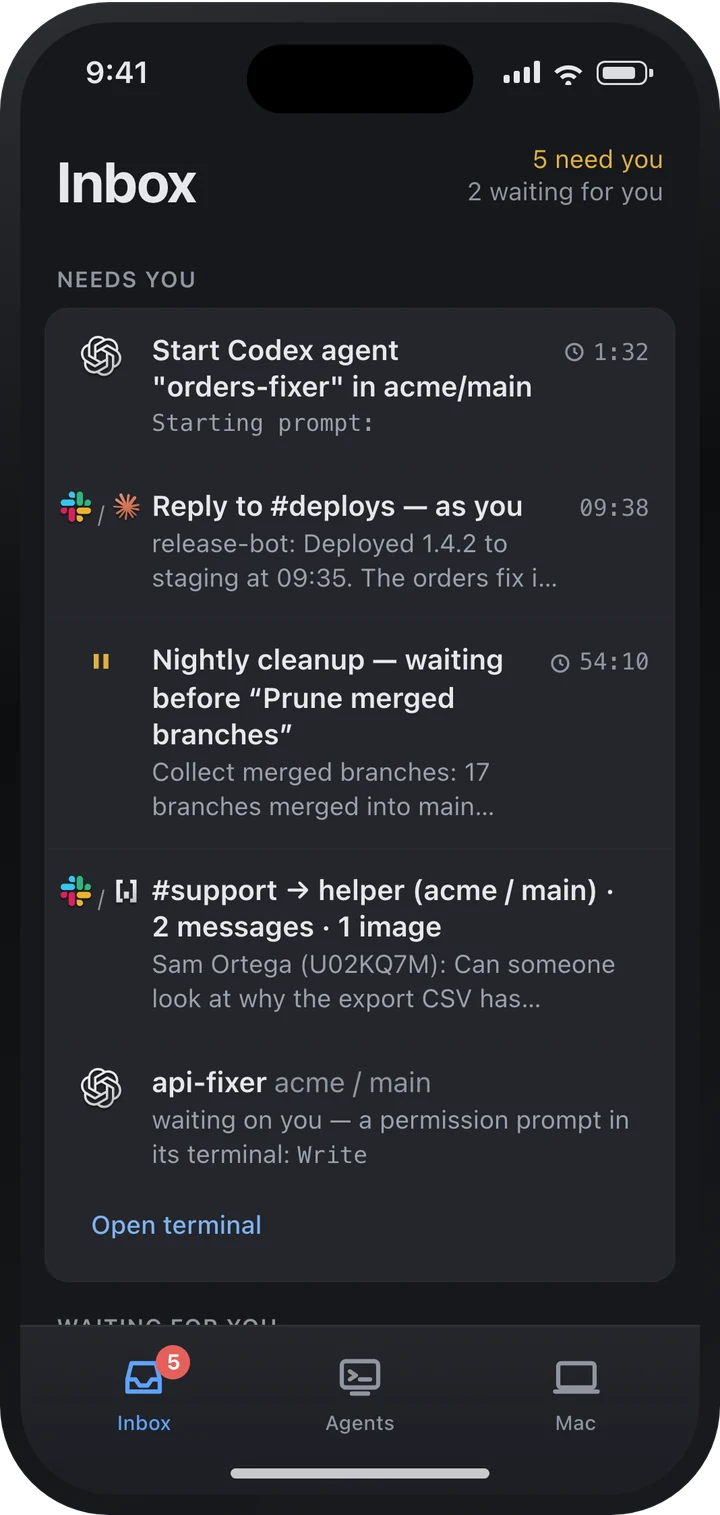
The Inbox on your Mac, on your phone, in the same order: what needs you first, then what is waiting for you.
When Assist wants to start an agent or act for you, the card it shows on your Mac comes to your phone: the whole request, its countdown, and Allow once or Deny.
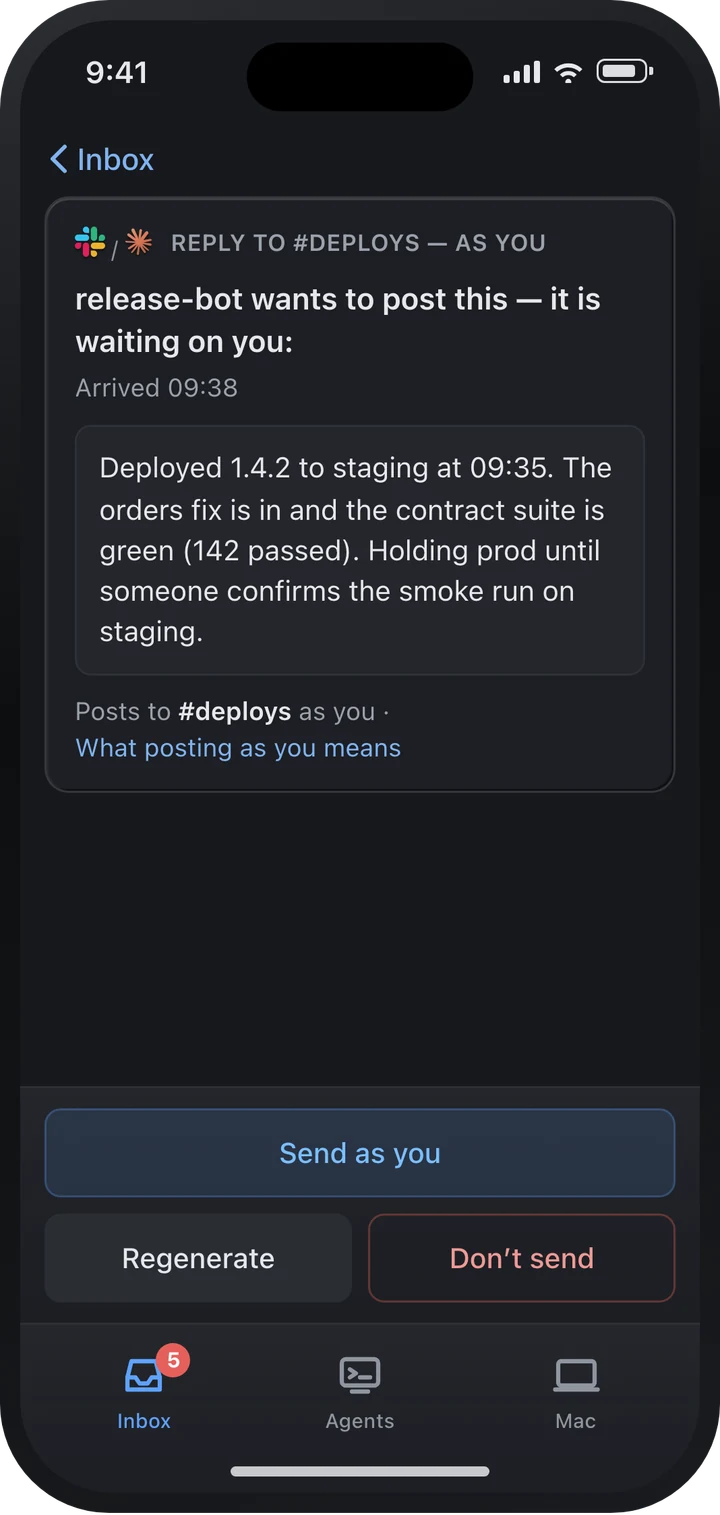
An agent’s Slack reply waits for you before it goes out under your name. Read it, edit it, have it written again, or send it.
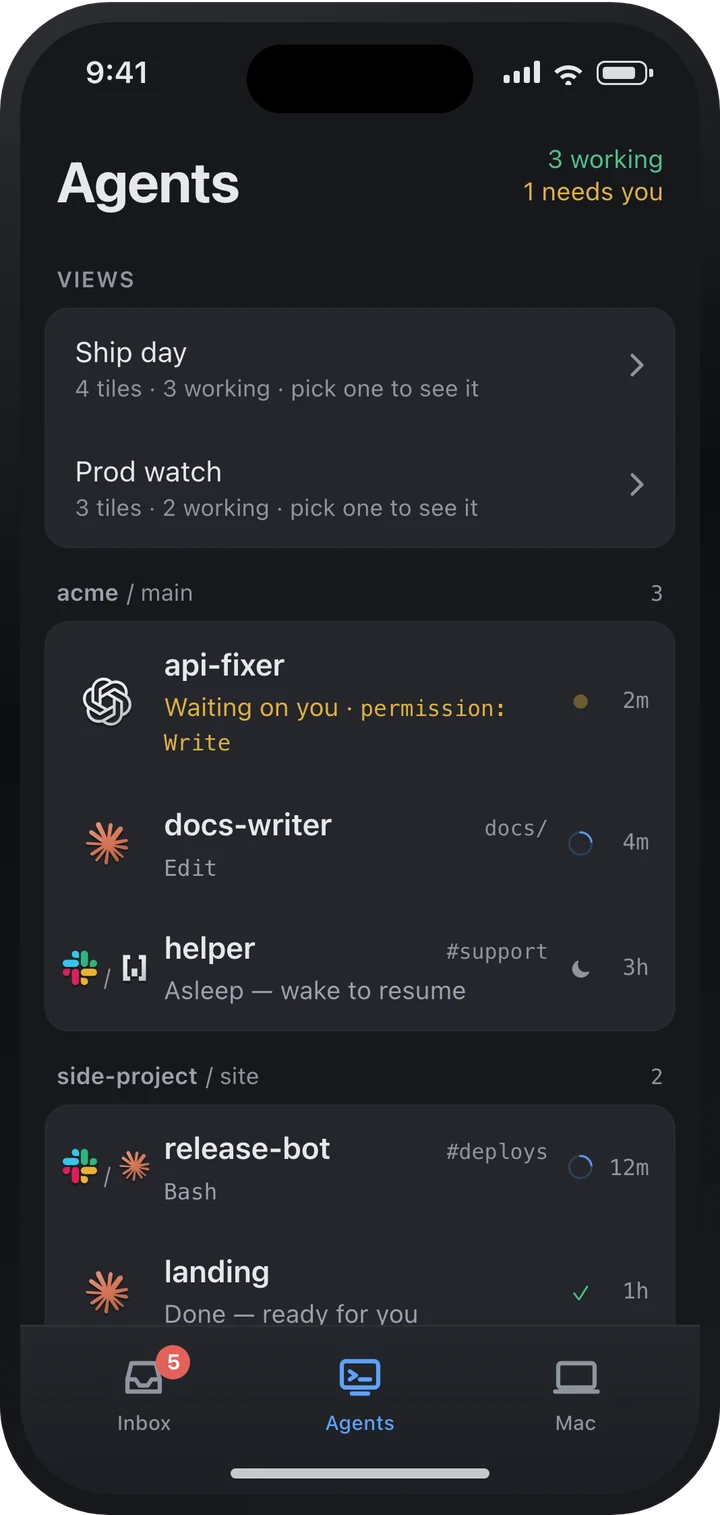
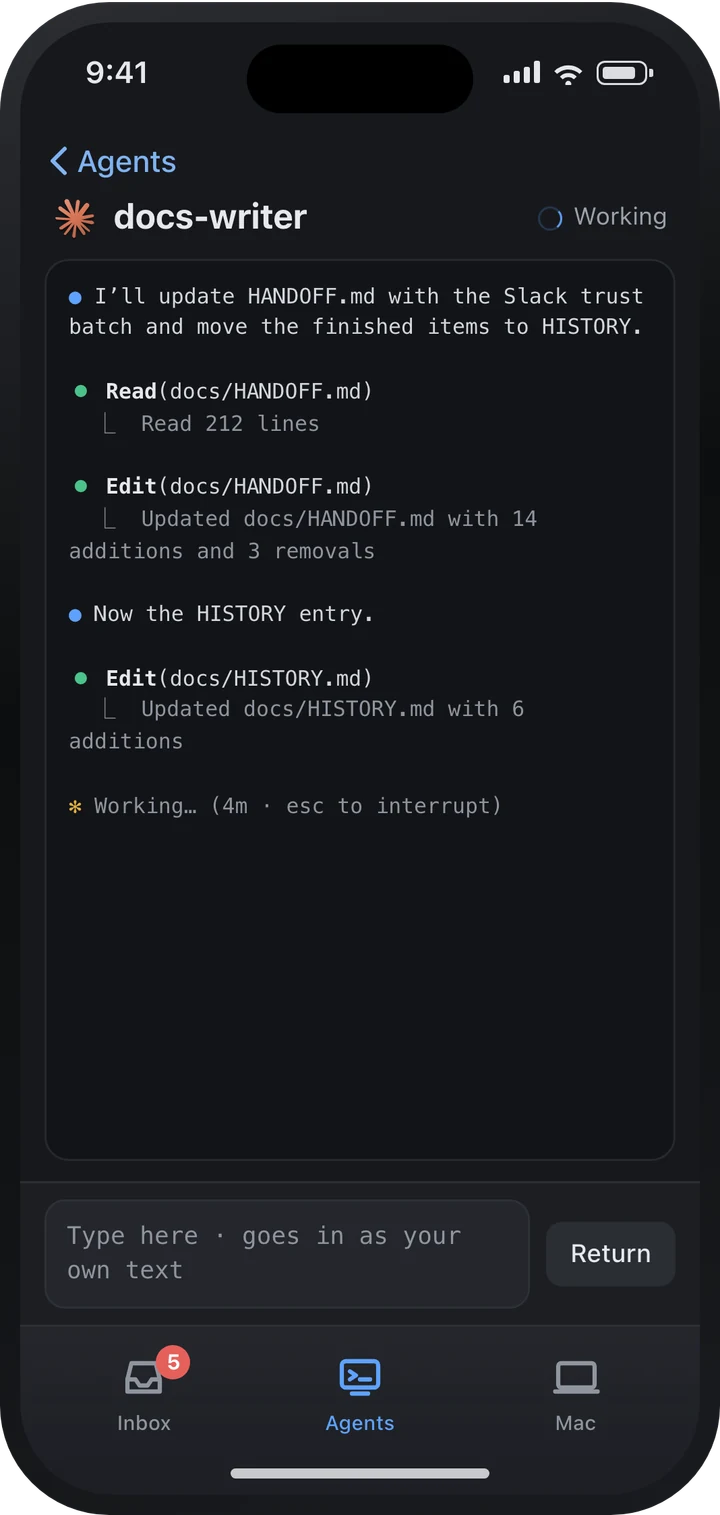
Which agents are working, which are waiting on you and which are asleep, in every project. Open one to watch its terminal live, and type into it when it needs you.
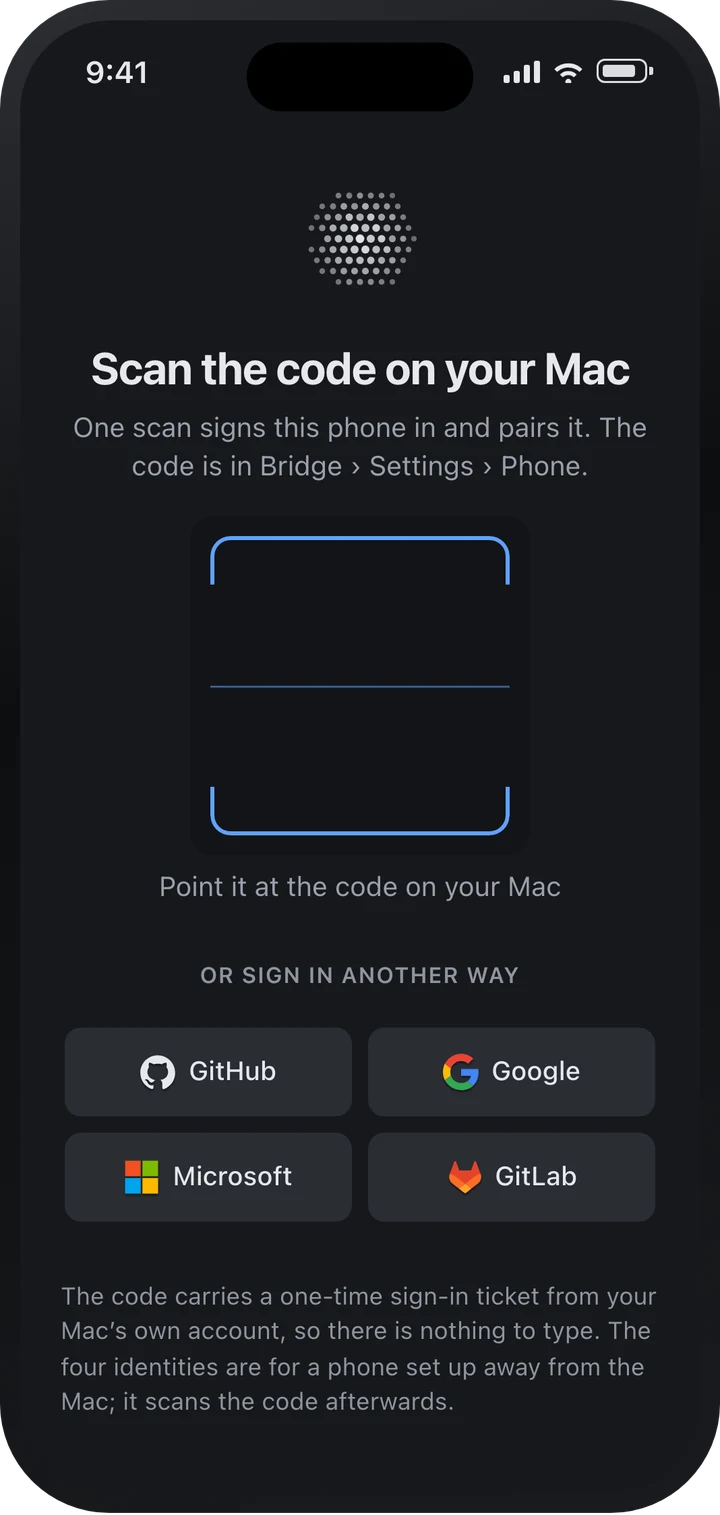
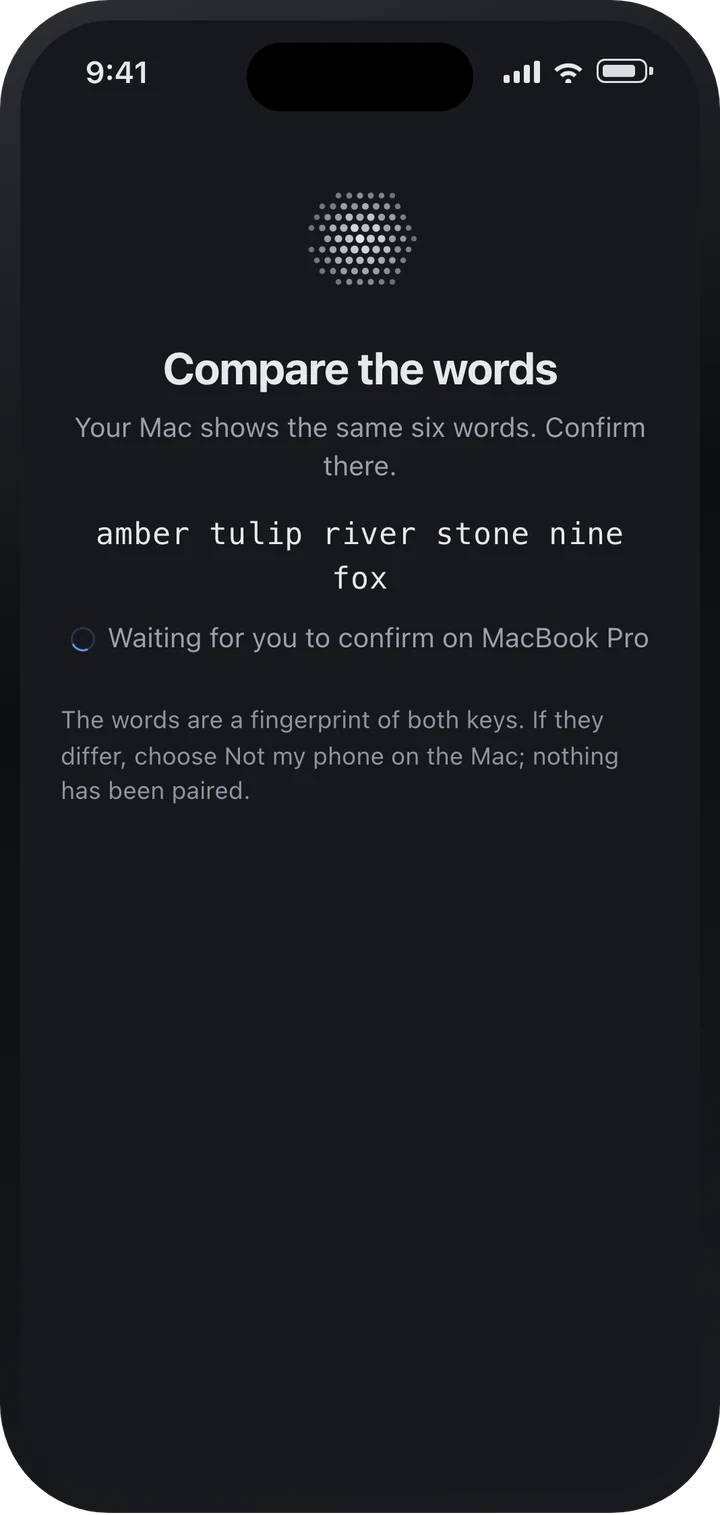
Download it for your Mac and sign in, then get AI Bridge from the App Store on your iPhone. Your iPhone pairs with a Mac, so the Mac comes first.
Open Settings › Phone on your Mac and scan the code it shows. One scan signs your phone in and pairs it.
Both screens show the same six words. Confirm on your Mac, and your phone is in.
Now on the App Store · Free
AI Bridge runs your agents on your Mac. The iPhone app pairs with it in one scan and keeps you in the loop wherever you are.